







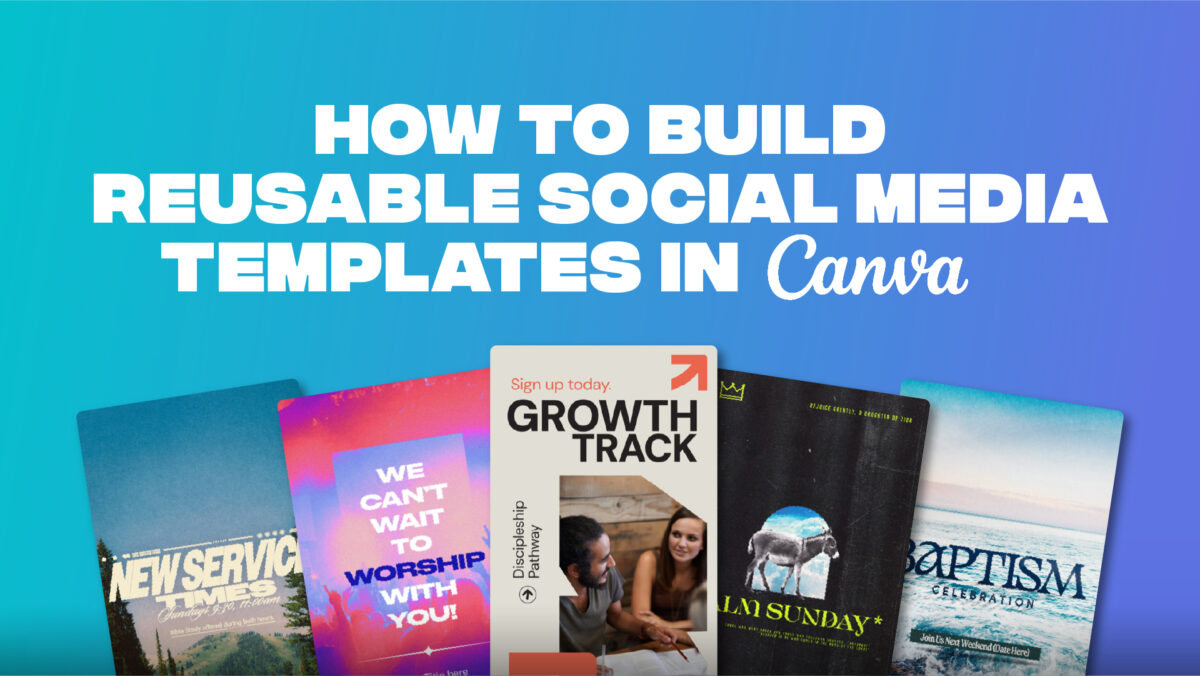
How To Build A Reusable Social Media Template System In Canva
In today’s ministry landscape, social media isn’t optional – it’s essential. Whether you’re promoting a sermon series, sharing a verse of encouragement, or inviting your community to an event, consistency in your church’s visual identity builds trust and recognition.
But let’s face it: creating fresh, high-quality graphics every week from scratch can be utterly exhausting, not to mention time consuming. It can wear out volunteers and drain staff.
Enter Canva.
Canva isn’t just a design tool – it’s a time-saving, team-empowering, sanity-restoring lifesaver for ministry leaders juggling communication tasks. One of its most powerful (yet underused) features is the ability to create and reuse branded templates for your church’s social media platforms.
Here’s how to build a reusable template system in Canva that will save you hours each week and make your content look like it was made by a pro – even if you’re not one.
Step 1: Define Your Core Post Types
Think about the kinds of posts your church creates weekly or monthly.
These might include:
Create a list of 5–7 core types that you regularly post. These will become the foundation of your Canva system.
Step 2: Create a Branded Template for Each Type
Start a fresh Canva design for each post type. Choose a square (1080×1080) or vertical (1080×1350) layout, depending on your primary platform (Instagram/Facebook vs. Stories/Reels).
For each template:
Canva-Ready Graphics
View All


Step 3: Organize Everything in a Canva Folder
Create a folder called “Social Templates” in your Canva account. Add all your core templates here. If you have a Canva Pro account, you can also create brand kits and shared folders for your team.
This simple system makes it easy for a volunteer, staff member, or even a guest speaker to grab and go.
Step 4: Train Your Team (or Yourself) to Duplicate & Customize
Instead of redesigning every post from scratch, just duplicate the template, drop in new content, swap out photos or Scripture, and you’re done.
No design experience required. No more inconsistency. No more burnout.
Step 5: Batch Create & Schedule Ahead
Once your system is in place, you can sit down and design a week or month’s worth of content in one session using your templates.
Then, schedule posts using Canva’s built-in content planner or a social tool like Meta Business Suite.
Templates don’t just save time – they empower consistency, allow delegation, and eliminate guesswork. And for churches operating with tight bandwidth and volunteer-driven teams, that’s gold.
You don’t need to be a graphic designer. You just need a good system – and Canva gives you one.